
Appearance
Users
The Users page is where administrators create accounts for the team and choose which pages each person can use.
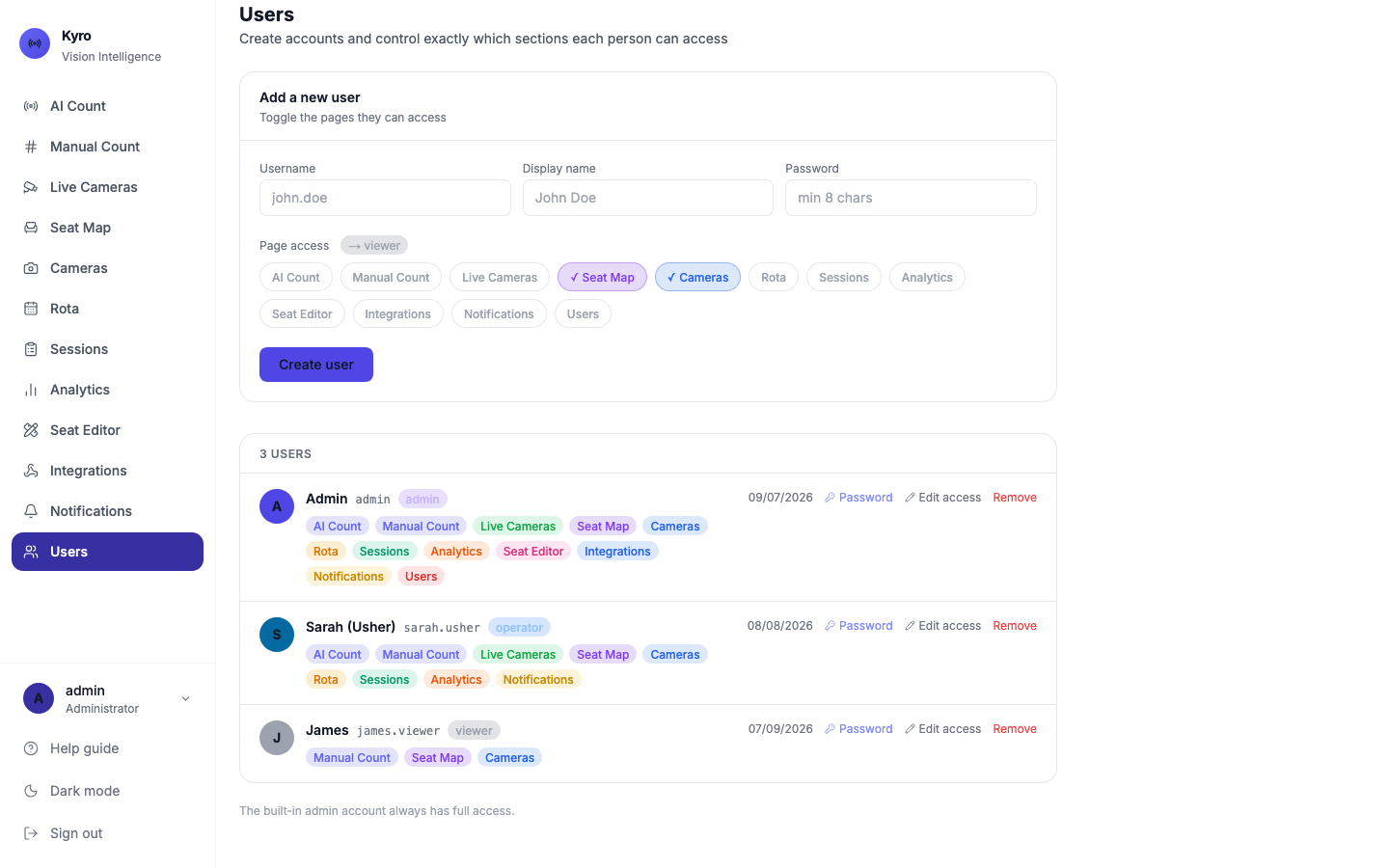
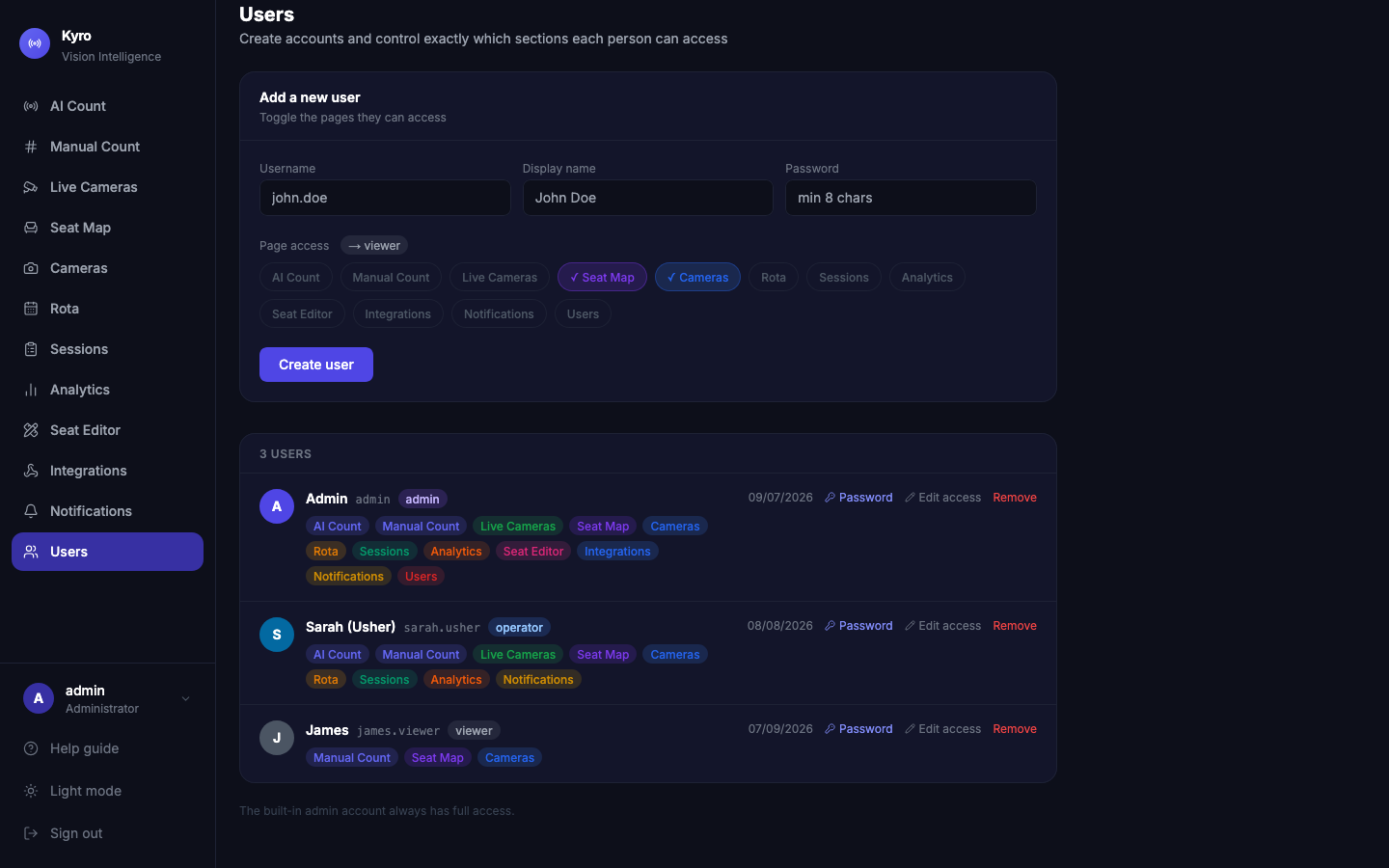
Add a user
- Fill in Username (for example john.doe), Display name and Password (at least 8 characters).
- Under Page access, tap the pages they should see. A ✓ shows a page is on.
- Check the role badge, for example → operator. It updates as you tick pages. See Roles & access.
- Tap Create user.
Keep it simple for each person
An usher who only counts rooms needs Manual Count and maybe Seat Map. Fewer pages means less to learn.
Change what someone can see
- Tap Edit access on their row.
- Tap pages on or off. The Role badge updates.
- Tap Save access.
Some pages make someone an admin
Ticking Seat Editor, Integrations or Users makes that person an administrator.
Passwords
Tap Password on a user's row. Enter the new password twice (at least 8 characters) and tap Save password. They use it the next time they sign in.
In Live mode passwords are stored securely on the Kyro server and can't be shown, not even to administrators. If someone forgets theirs, set a new one.
Remove a user
Tap Remove and confirm. The person is signed out the next time they open a page, and can't sign in again.
Kyro always keeps at least one administrator. You can't remove your own account, or take admin access away from the last admin.