
Appearance
Rota
The Rota tells Kyro who is scheduled to be at the front, and when: the choir, worship team, pastor or welcome team. Kyro then knows that someone walking to the front at that time isn't responding to an altar call.
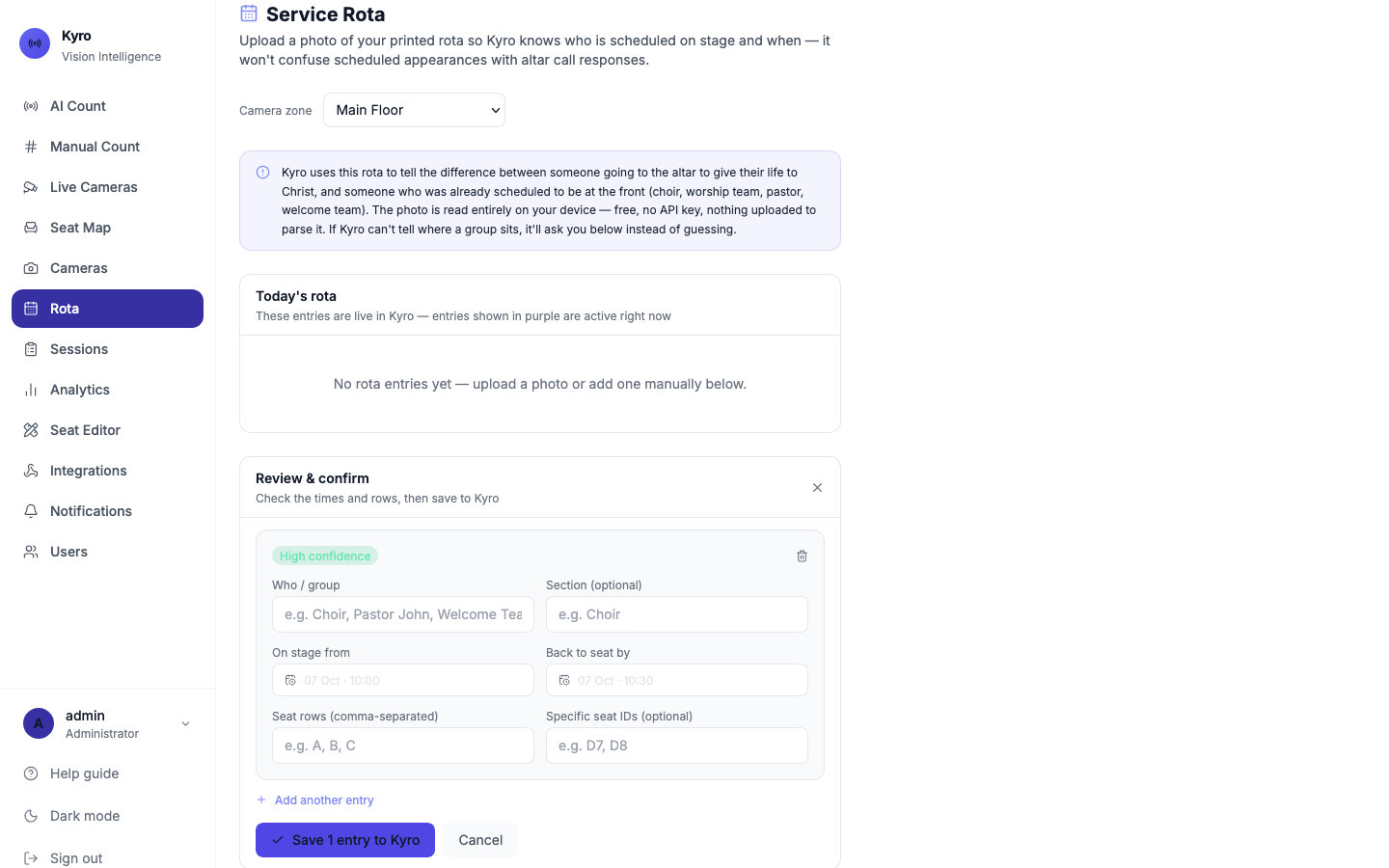
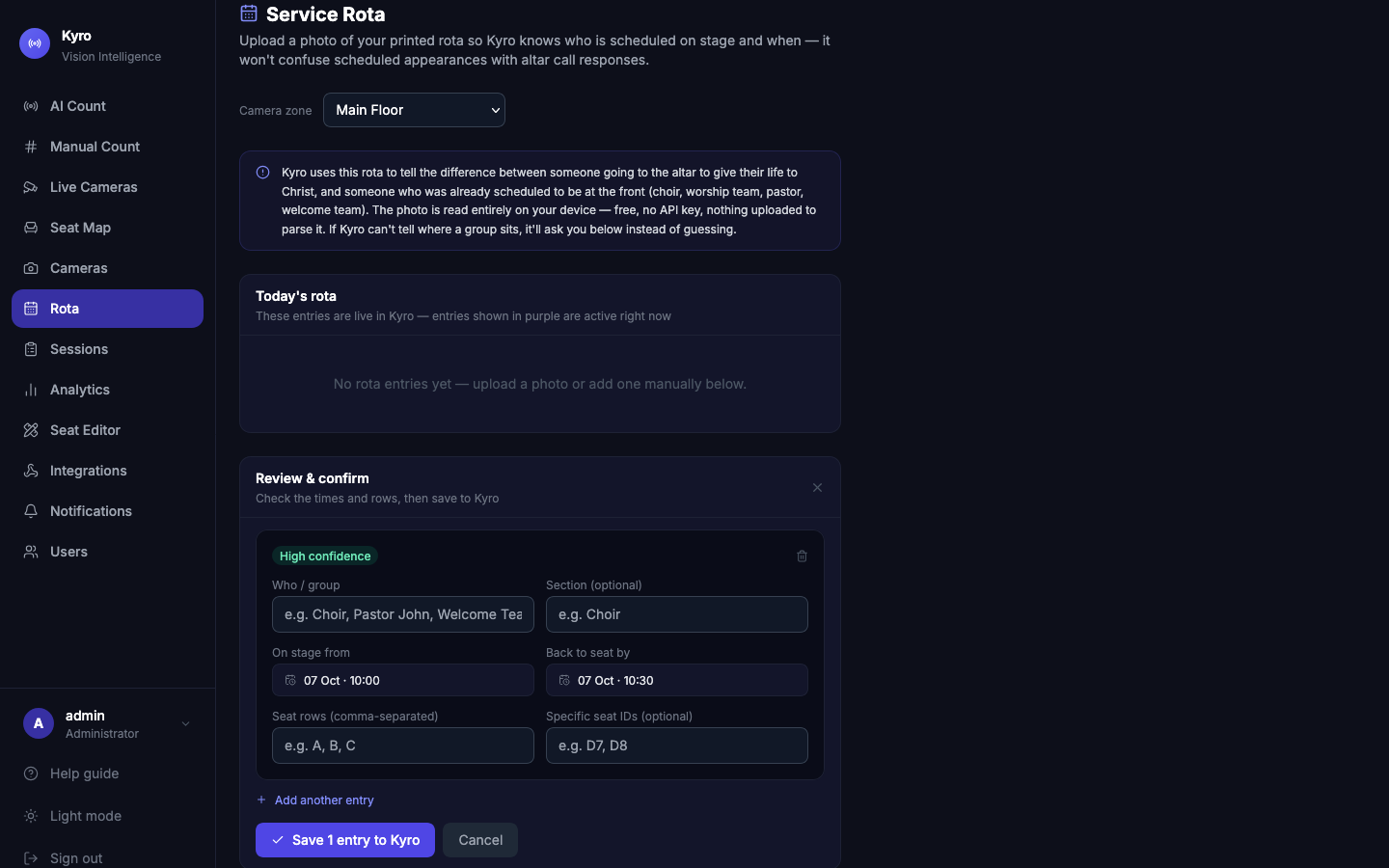
Add the rota from a photo
- If you have more than one camera, choose the Camera zone.
- Tap Drop a photo of your rota and choose a photo of your printed or whiteboard rota. You can also drag the photo onto the box.
- Wait while Kyro reads it (Reading your rota…). The photo is read on your device and isn't uploaded anywhere.
- Under Review & confirm, check each entry and fix anything Kyro misread:
- Who / group, for example Choir or Pastor John
- On stage from and Back to seat by
- Seat rows, for example A, B, or Specific seat IDs
- If Kyro asks "Which seating area is … in?", choose the area, tap the rows on the seating chart, or tap No fixed seat.
- Tap Save entries to Kyro.
Each entry has a High, Medium or Low — review confidence badge. Check the low ones carefully.
Clear photos read best
Take the photo straight on, in good light, with the whole rota in frame. If Kyro can't read the times, it asks you to fill them in instead.
Add entries by hand
Tap + Add entry manually, fill in the fields, use + Add another entry for more, then Save to Kyro.
Today's rota
Saved entries appear under Today's rota. Entries happening now show a purple ● Live now badge, and finished ones say ended. Tap the bin to remove an entry. It's removed straight away.
Answer every seating question
You can't save until every "Which seating area…" question is answered or marked No fixed seat. Without it, Kyro can't tell the choir walking to the front from an altar-call response.