
Appearance
What is Kyro?
Kyro counts the people at your services and shows where they're sitting, live, so your team can make decisions during the service rather than after it.
Cameras in each room count people as they come in and leave, and watch which seats are taken. Your team fills in the gaps: ushers count rooms that don't have a camera, and staff answer the AI when it isn't sure what it's seeing.
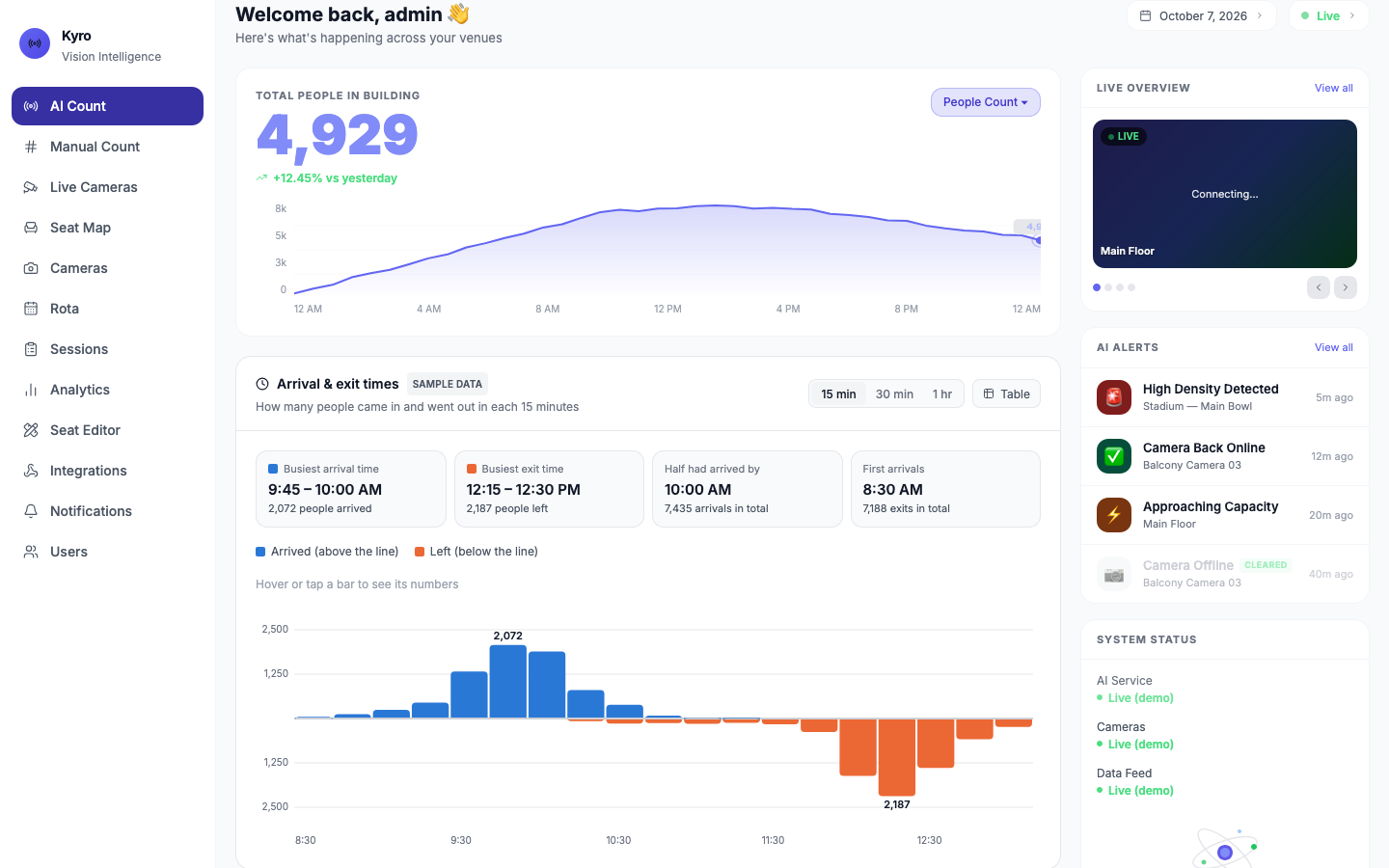
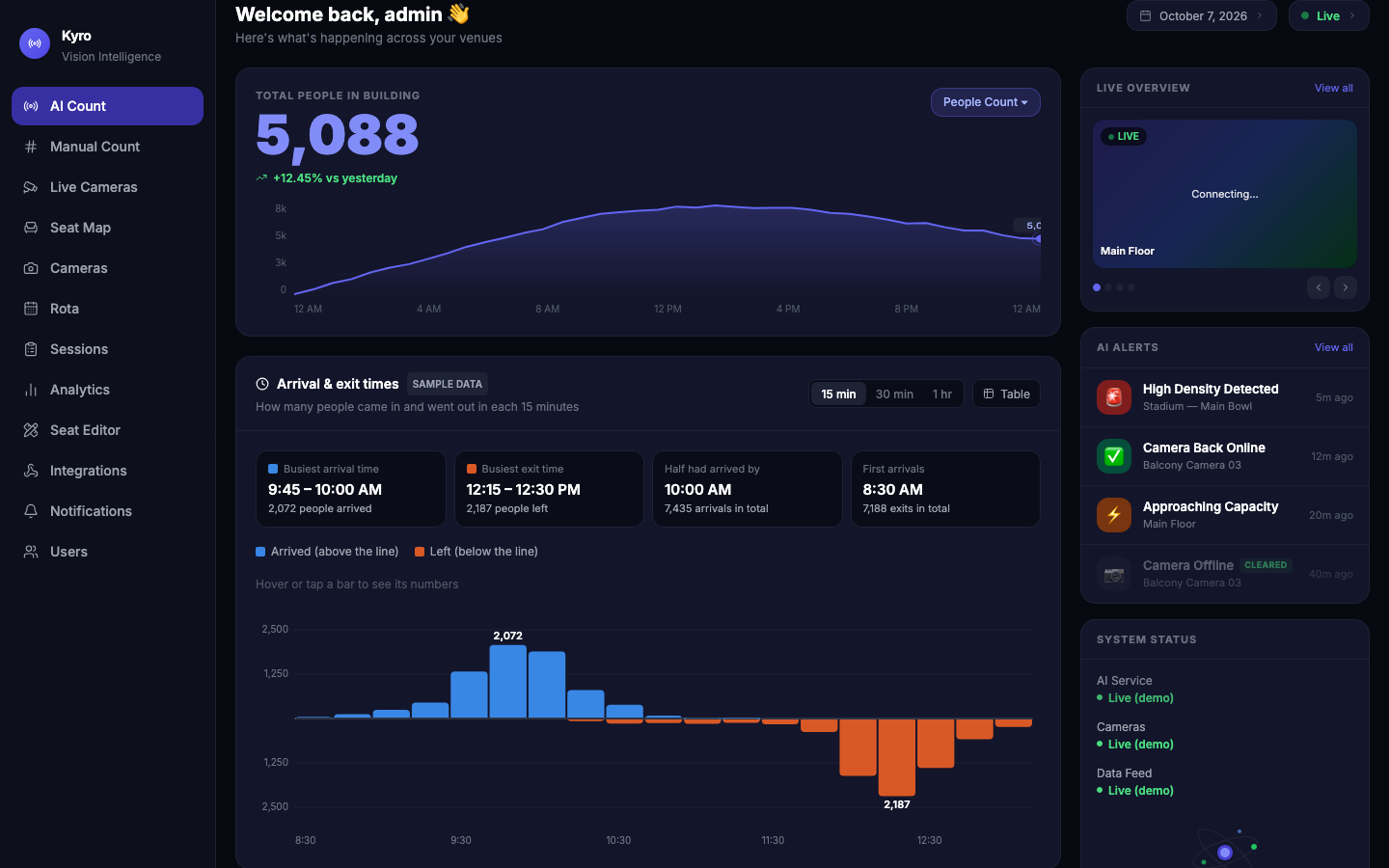
What you can do with Kyro
| You want to… | Go to |
|---|---|
| See how many people are here right now | AI Count |
| Count a room that has no camera | Manual Count |
| See how full every room is, and if the queue will fit | Live Cameras |
| Find free seats, reserve seats, answer AI questions | Seat Map |
| Tell Kyro who's on stage and when | Rota |
| Start and stop recording a service | Sessions |
| See trends over the last month | Analytics |
| Get alerts on your phone | Notifications |
| Send the total to Zapier, a Google Sheet or a portal | Integrations |
| Add staff and choose what they can see | Users |
Two ways to use Kyro
When you open Kyro you choose a mode:
- Demo mode fills Kyro with realistic sample data: sample cameras, a busy Sunday, AI questions and alerts. Nothing you do affects real data. Use it to learn Kyro and to train new team members.
- Live mode is the real thing. It starts empty and shows your actual counts, cameras and history.
See Signing in for how to choose.
New to Kyro?
Watch the 2½-minute video tour, then try it yourself in Demo mode with the Sunday service checklist. Everything you see in Demo works the same way in Live.
What Kyro needs to count automatically
Camera counts, seat maps and camera alerts need the camera system: cameras connected to the Kyro computer at church, with the Kyro software running on it. Without it, Live mode still lets you record manual counts, approve totals, send them on through Integrations and get count alerts on your phone.