
Appearance
Getting alerts on your phone
Kyro can send alerts straight to your phone's lock screen, like a text message, even when Kyro is closed and the phone is in your pocket.
iPhone
- Add Kyro to your home screen. Open Kyro in Safari → Share → Add to Home Screen. This is required on iPhone and needs iOS 16.4 or newer. → Install on your phone
- Open Kyro from the home-screen icon, not from Safari.
- Go to Notifications and tap Turn on, then Allow.
- In iPhone Settings → Notifications → Kyro, check that Allow Notifications, Lock Screen and Banners are on.
Android
- Open Kyro in Chrome.
- Go to Notifications and tap Turn on, then Allow.
- Optional: ⋮ → Install app to open Kyro like an app.
Computer
Go to Notifications, tap Turn on and Allow. Alerts appear in the corner of your screen while your browser is open, even if it's minimised.
Check it really works
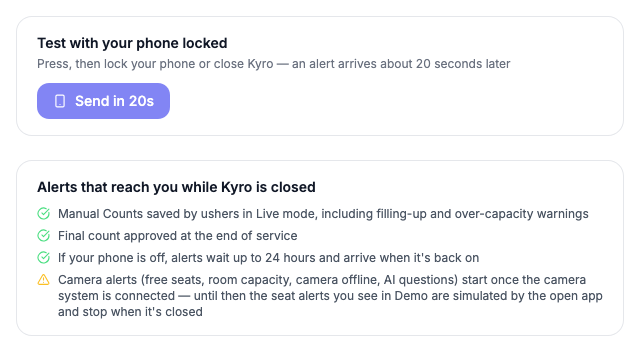
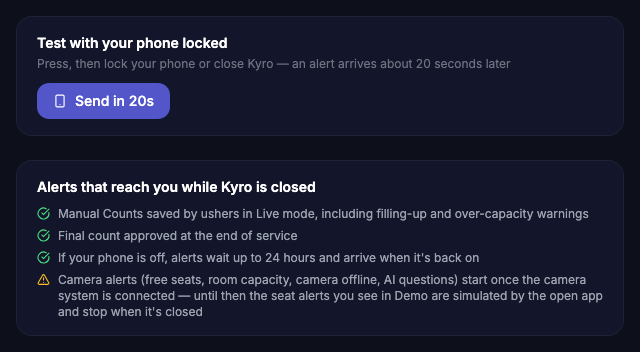
- On Notifications, tap Send in 20s.
- Straight away, lock your phone or switch to another app.
- About 20 seconds later you should see 🔒 Kyro reached your lock screen.
If it arrives, you're set. You won't miss alerts.
What you'll be alerted about
| Alert | Example |
|---|---|
| A room is counted | 📋 Overflow Room counted: 64 people · counted by Grace |
| A room is filling up | ⚠️ Main Floor is filling up: 83% full |
| A room is over capacity | 🚨 Main Floor is over capacity: 93% full |
| The final count is approved | ✅ Final count approved: 1,204 total for today's service |
| A seat is free (with cameras) | 🪑 Seat A12 is free: Main Floor |
| The AI has a question (with cameras) | 🎭 Kyro has a question |
Tapping an alert opens the right page in Kyro.
When your phone is off
Alerts wait for up to 24 hours and arrive when you switch your phone back on. Apple delivers only the most recent alert that arrived while an iPhone was off, so check Kyro when you're back for the full picture.
Do Not Disturb and Focus
If a Focus mode or Do Not Disturb is on, alerts arrive silently. Add Kyro to the apps allowed to notify you during that Focus.
Turn them off
Tap Turn off on the Notifications page. This stops alerts on that device only.