Appearance
Finding your way around
The sidebar
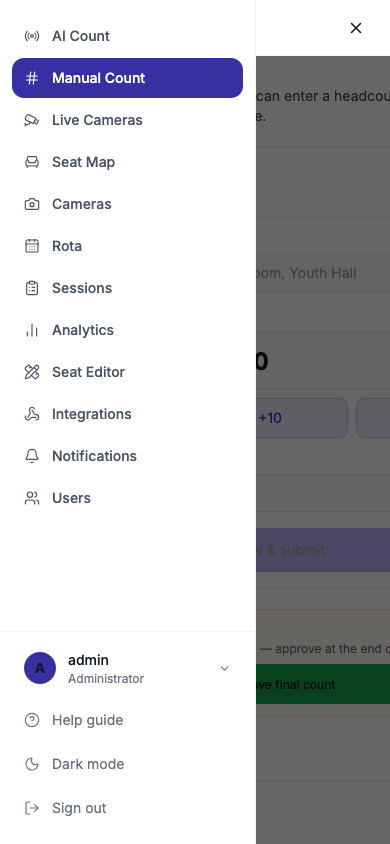
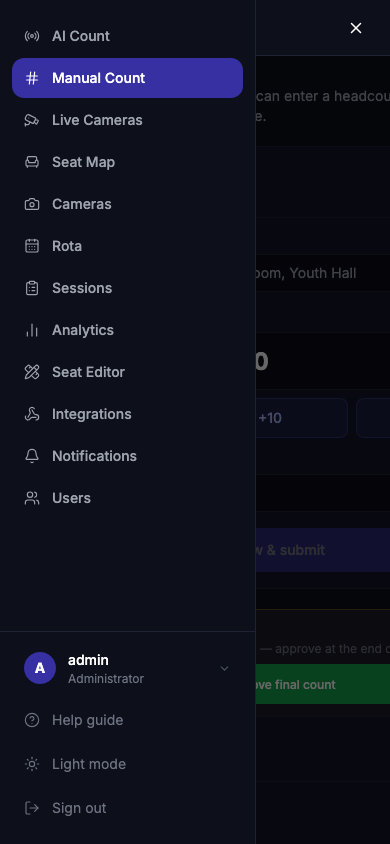
Every page has the sidebar down the left. It lists the pages you have access to, in this order:
AI Count · Manual Count · Live Cameras · Seat Map · Cameras · Rota · Sessions · Analytics · Seat Editor · Integrations · Notifications · Users
You only see the pages your role allows. See Roles & access.
Look out for these signs in the sidebar:
| You see | It means |
|---|---|
| An amber banner AI has 2 questions → at the top | The AI needs your help. Tap it to go to the Seat Map and answer. See AI questions. |
| An amber number next to AI Count | How many AI questions are waiting |
| A pulsing green dot next to Sessions | A service is being recorded right now |
| The page name highlighted in indigo | The page you're on |
At the bottom of the sidebar you'll find your name and role, Help guide, the light/dark switch, and Sign out. Help guide opens this guide at the page that explains the page you're on.
On your phone
On a phone the sidebar is tucked away. Tap the menu button (☰) at the top right to open it. It closes by itself when you pick a page, or tap the dimmed area to close it.
Light and dark
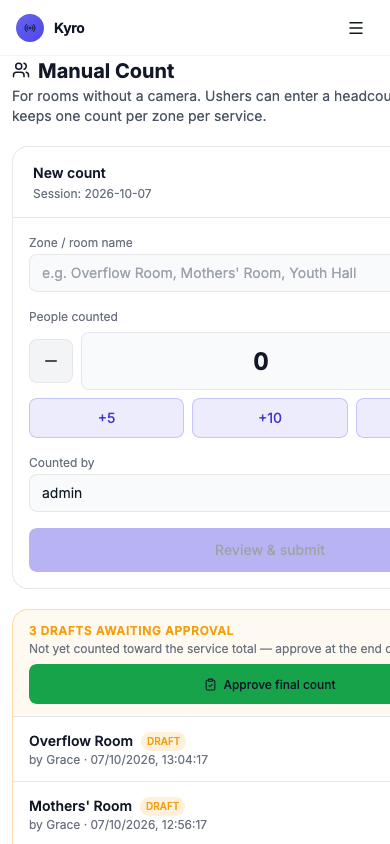
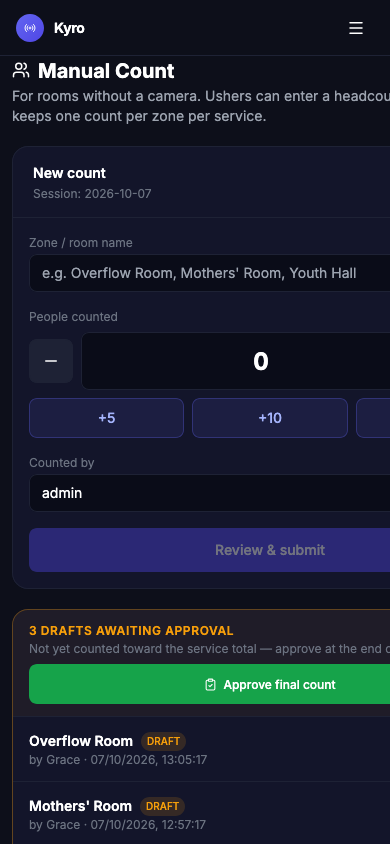
Tap Light mode or Dark mode at the bottom of the sidebar to switch. Kyro remembers your choice on that device. On your first visit it follows your phone or computer's own setting. The sign-in screen has the same switch as a round button in the top right.
TIP
Every screenshot in this guide follows your theme. Switch this guide to dark mode (top right) to see the dark versions.