
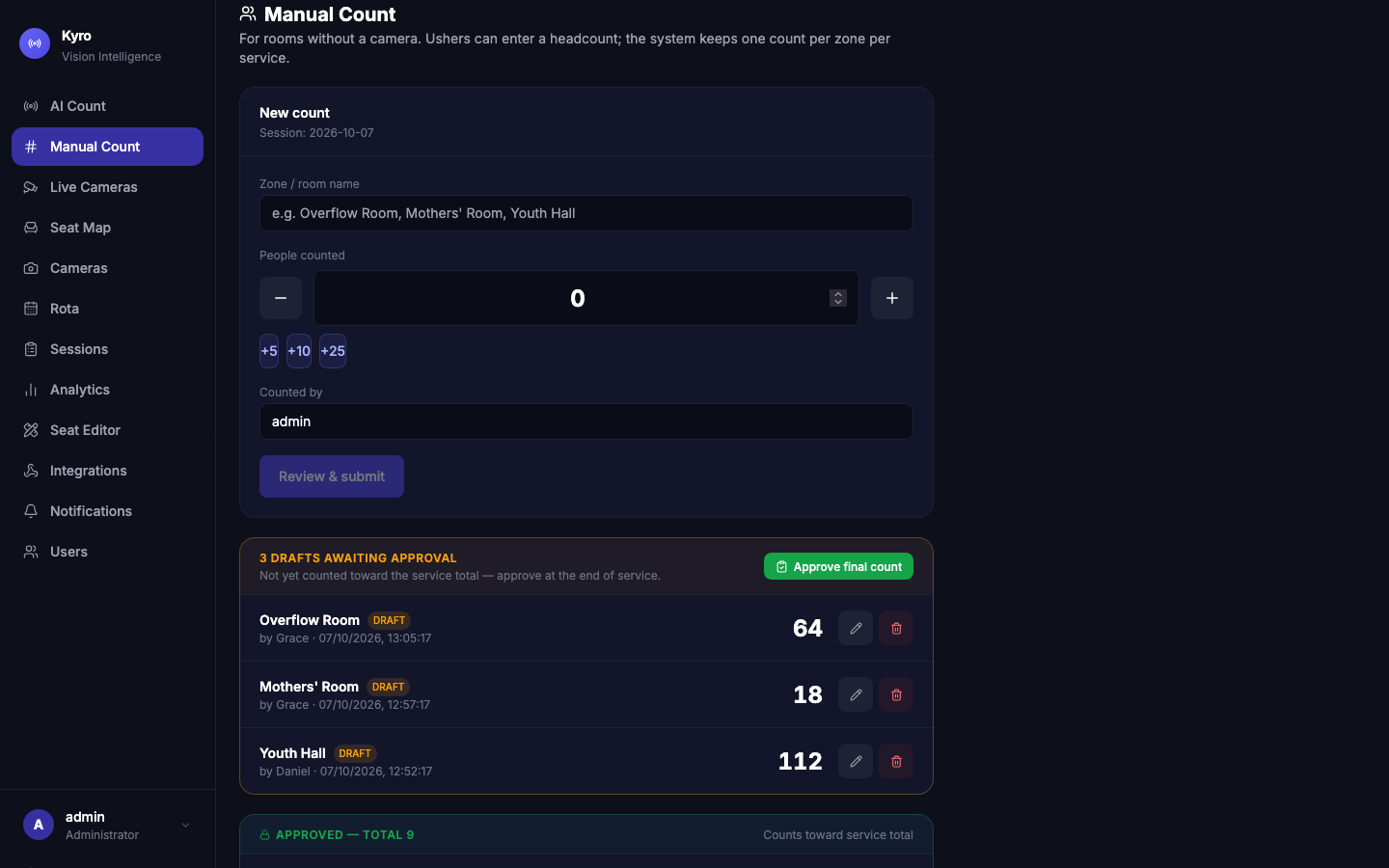
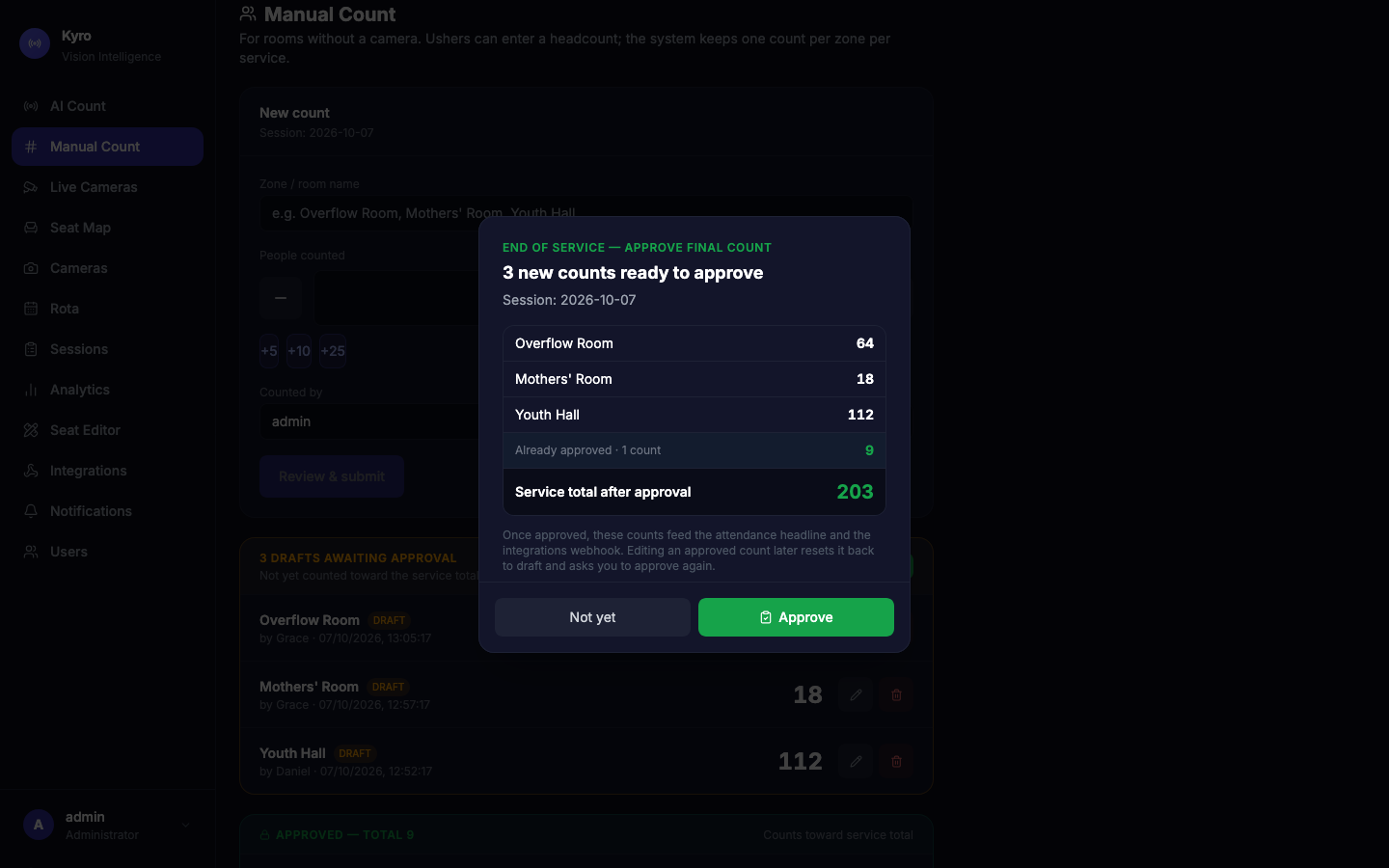
Appearance
Manual Count
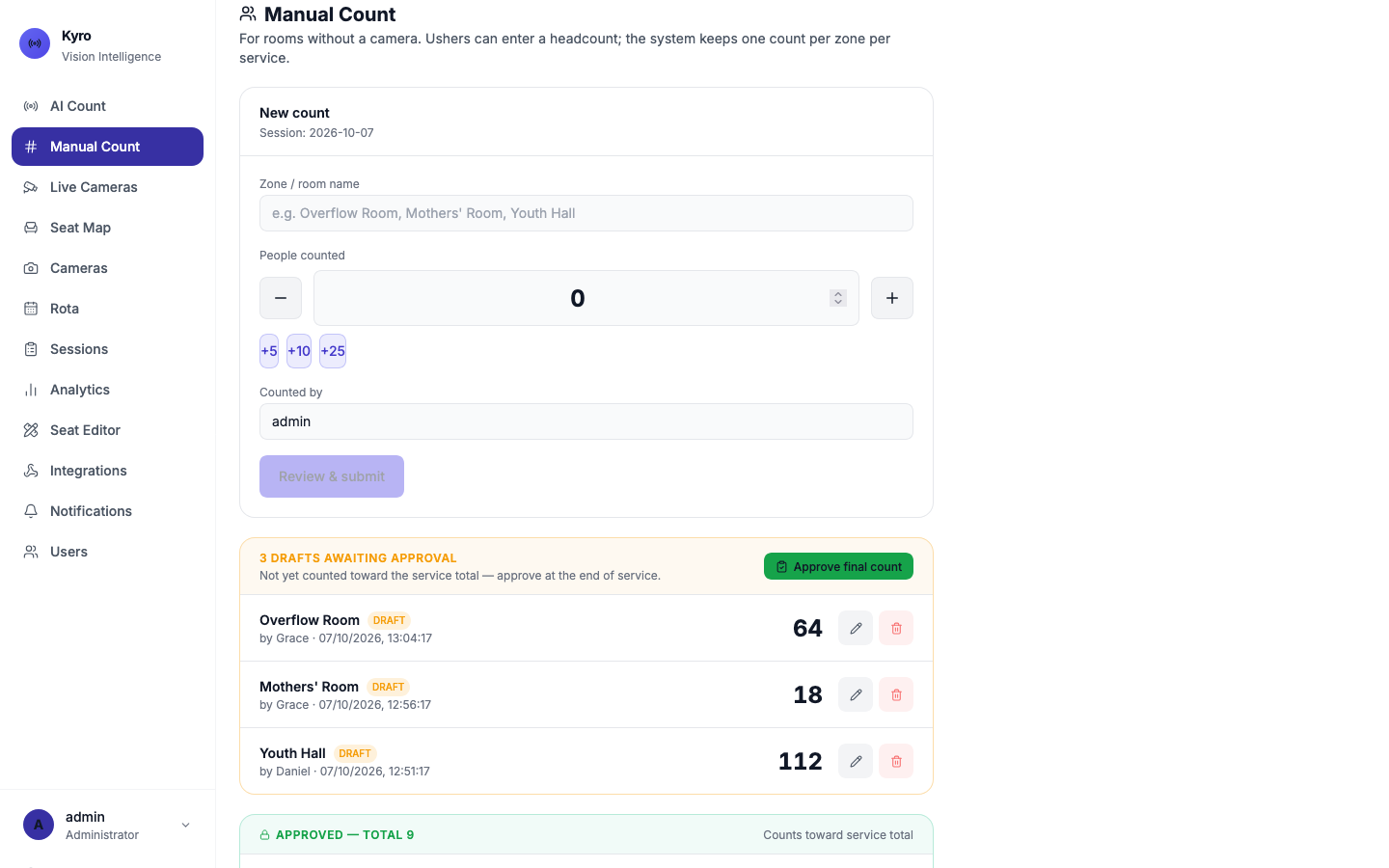
Manual Count is for rooms without a camera, such as the overflow room, the mothers' room or the youth hall. An usher counts heads and enters the number from their phone. At the end of the service, someone approves the counts so they're added to the total.
Record a count
- In Zone / room name, type the room, for example Overflow Room.
- Enter the number in People counted. Type it, use − and +, or tap +5, +10 or +25 to count quickly.
- Counted by shows your name. In Live mode it's taken from your account, so counts can't be entered under someone else's name.
- Tap Review & submit.
- Check the number and the room, then tap Confirm & save.
You'll see Saved: Overflow Room → 64, and the count appears under Drafts awaiting approval.
One count per room per service
If the room already has a count today, the new number replaces it. It doesn't add to it. Kyro tells you before you save: "A count of 64 already exists for this zone this service. Submitting will replace it (not add to it)."
Don't double-count a camera room
If a camera is already counting that room, Kyro warns you: "A camera is already counting… Adding a manual count will double-count this zone." Only save a manual count if the camera is offline or clearly missing people.
Approve the final count at the end of service
Drafts don't count towards the service total until they're approved. This stops numbers changing during the service without anyone checking them. Only admins and operators can approve. Ushers see "An admin or operator approves the final count" instead of the button.
- Tap Approve final count.
- Check the list and the Service total after approval.
- Tap Approve.
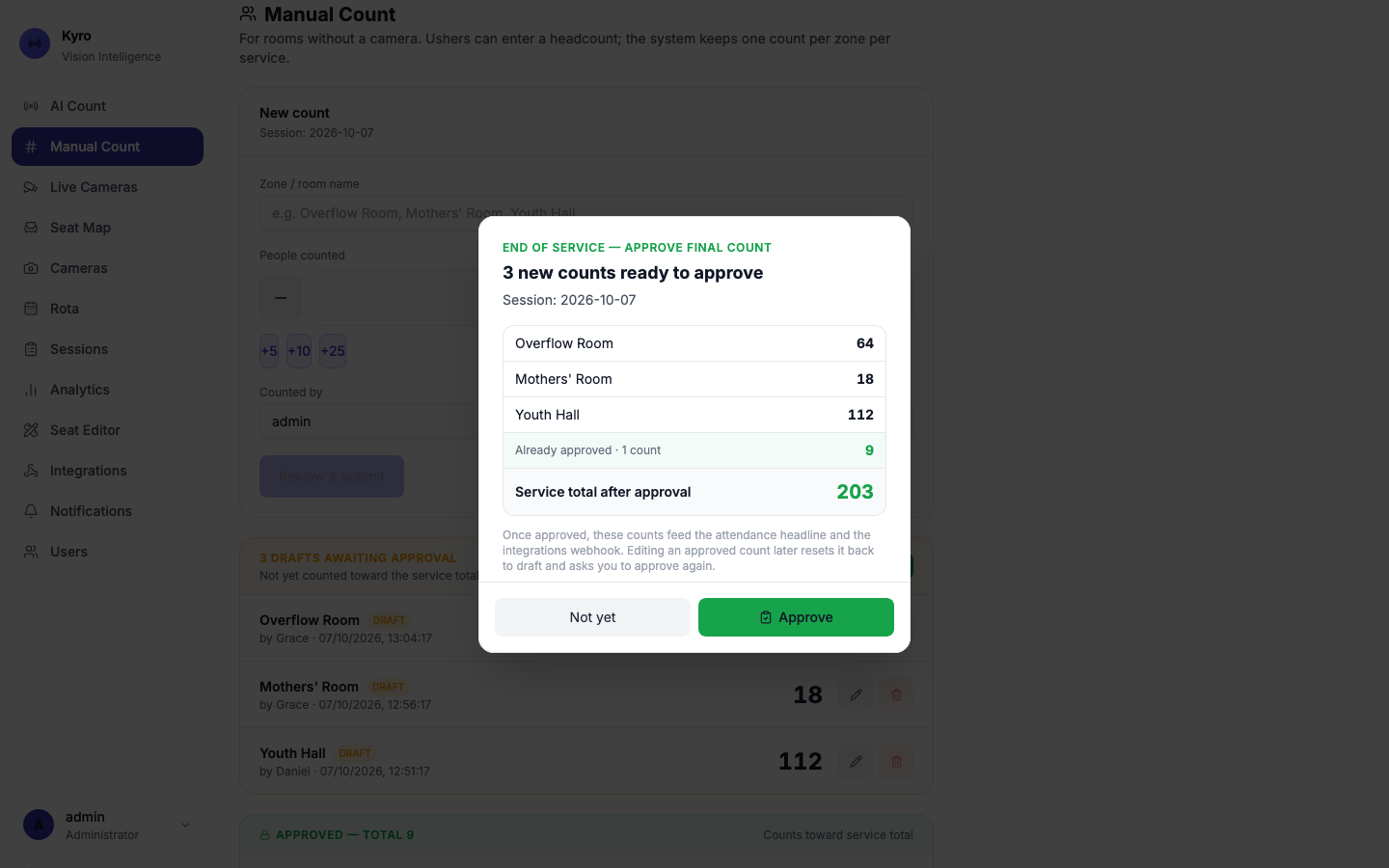
Approved counts move to the Approved box, which shows who approved them and when. They're now included in the AI Count headline and the Integrations send.
Correct or remove a count
- Change a number: tap the pencil on the row, change the number, then Review & submit → Confirm & save.
- Remove a count: tap the bin and confirm.
Editing an approved count
Editing an approved count turns it back into a draft, so it has to be approved again. This way a final number can't quietly change after sign-off.
Good to know
- Each calendar day is one service. At midnight a new day starts, and the lists show today's counts only.
- Room names aren't case-sensitive: overflow room and Overflow Room are the same room.
- In Live mode, when an usher saves a count, leaders who have turned on notifications get an alert on their phone, for example "📋 Overflow Room counted: 64 people, counted by Grace". If the room has a seat capacity, the alert warns when it's filling up or over capacity. Approving the final count sends "✅ Final count approved".
- The person who saves or approves a count doesn't get an alert about it. They can already see it on screen.
- Counts are shared in Live mode. Every usher's phone adds to the same list, and everyone sees it update within about 10 seconds. The AI Count headline and the Integrations send include everyone's approved counts.
- Ushers can remove their own drafts. Removing an approved count needs an admin or operator.