
Appearance
Sessions
A session is one recorded service on one camera. Start a session when the service begins and end it when it finishes. Kyro saves the peak, the entries and the full record for later.
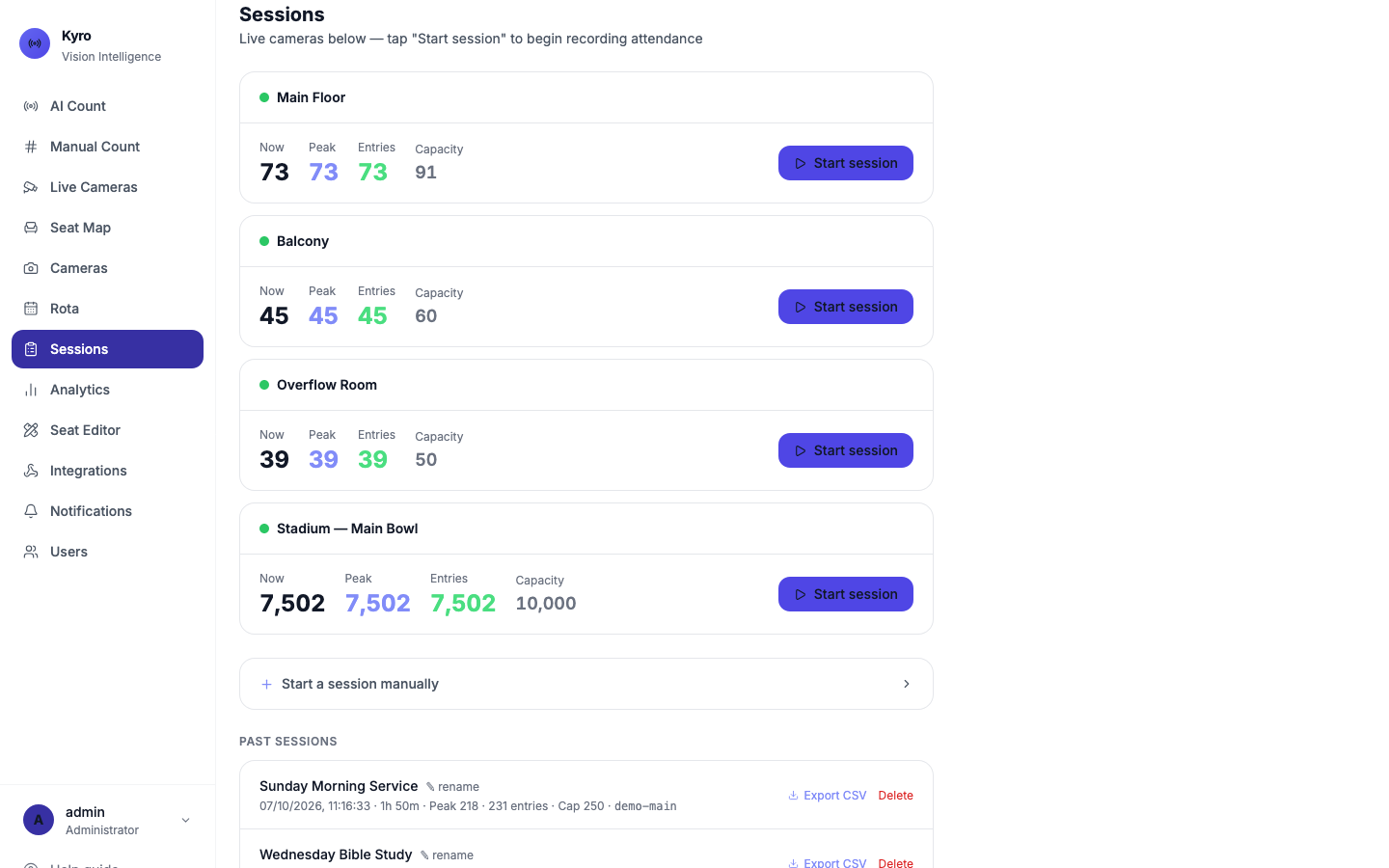
Start a session
Quick start: on the camera's card, tap Start session.
With a name (recommended):
- Tap Start a session manually.
- Enter a Session name, for example Sunday Morning Service.
- Choose the Camera. The Capacity fills in from the camera.
- Tap Start.
While recording, the card shows ● Session live and the time running, and the sidebar shows a green dot next to Sessions.
The camera must be live
Start session is only available when the camera is sending pictures. If it's greyed out, the camera isn't running yet. See Cameras.
End a session
Tap the red End session on the camera's card. You'll see Session ended — metrics saved.
Remember to end it
If the green dot next to Sessions is still pulsing after the service, a session is still running. End it so the numbers stay accurate.
Past sessions
Finished sessions are listed under Past sessions, with the date, how long they ran, the peak, the number of entries and the capacity.
- Rename: tap ✎ rename, type the name, then Save. A quick-started session has no name until you rename it here.
- Download: tap Export CSV to get a spreadsheet of the session's numbers.
- Delete: tap Delete and confirm. This can't be undone.