
Appearance
Live Cameras
Live Cameras shows every camera on one screen, grouped by room. You can see how full each room is, how many seats are left, and whether the people queuing outside will fit.
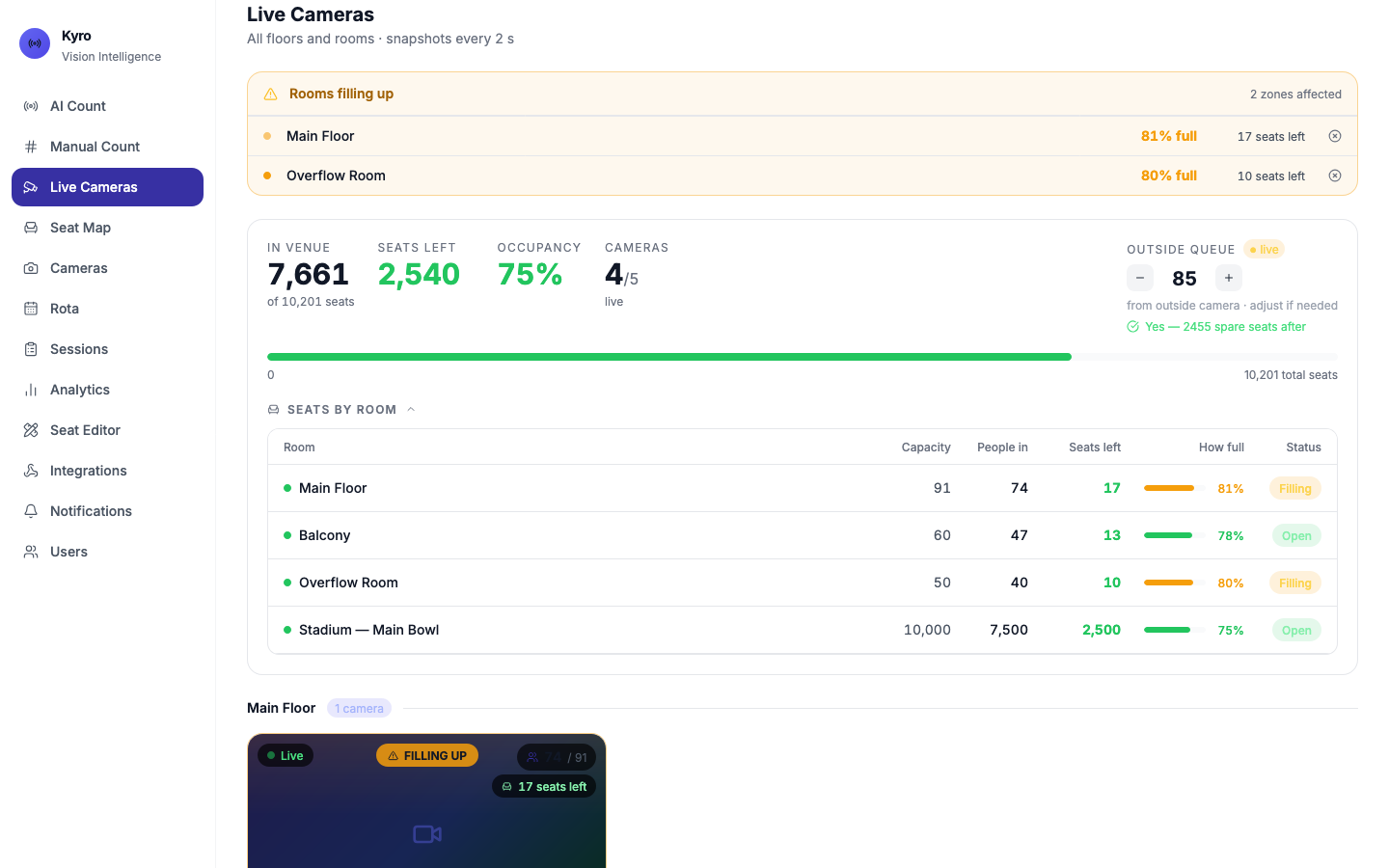
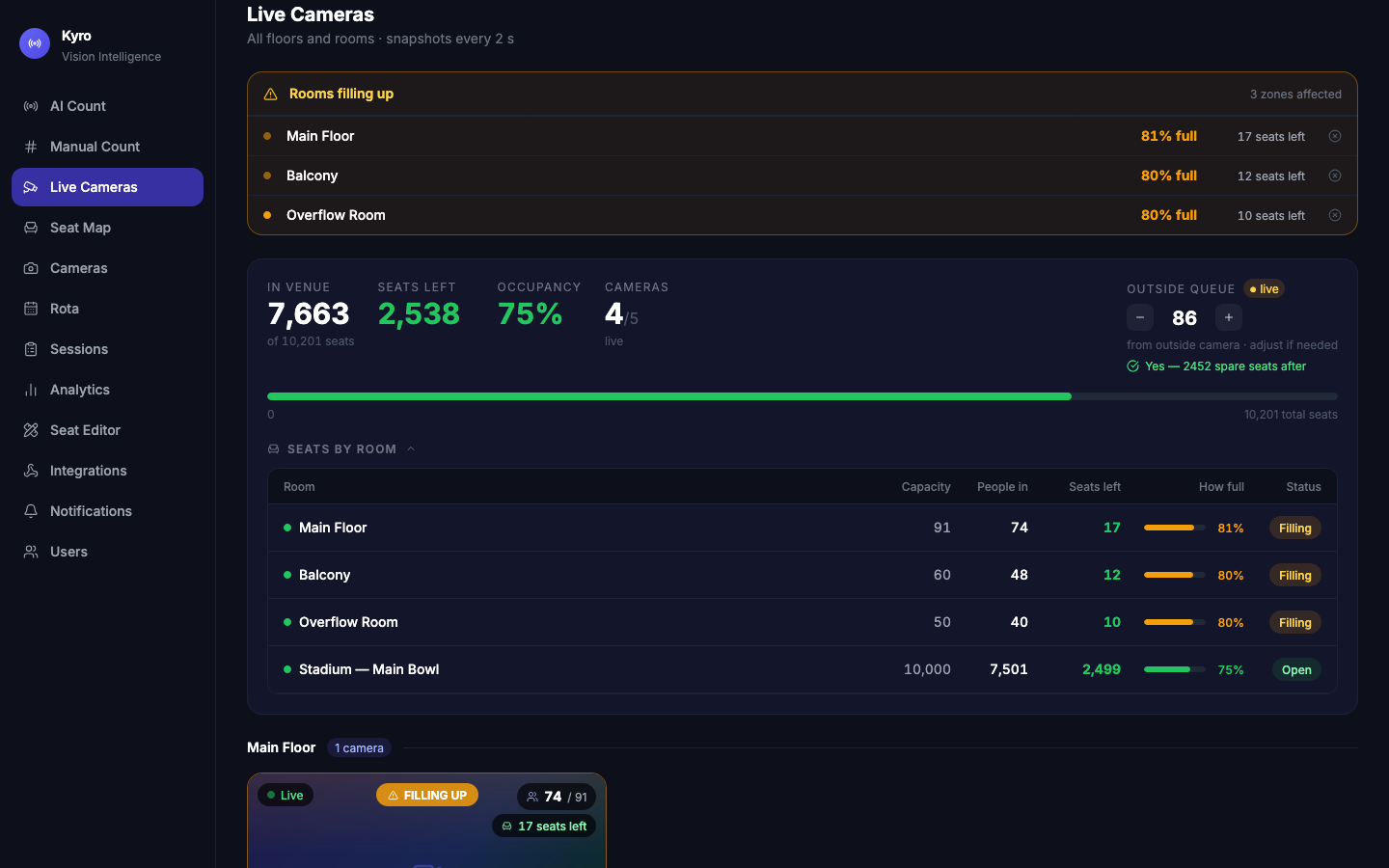
Venue overview
The card at the top answers the big questions:
| Box | Shows |
|---|---|
| IN VENUE | People inside, out of the total seats |
| SEATS LEFT | Free seats. Turns amber under 20 and red with Full at 0. |
| OCCUPANCY | How full the venue is |
| CAMERAS | How many cameras are live |
| OUTSIDE QUEUE | People waiting outside, with a verdict: Yes, 40 spare seats after or No, 25 too many |
If there's no outdoor camera, use − and + on OUTSIDE QUEUE to enter a rough count of the queue (it changes by 10). Kyro tells you whether they'll fit.
Seats by room lists each room's capacity, people in, seats left and how full it is, with a status of Open, Filling, Full, Offline or Camera error. Tap the heading to fold the table away.
Filling-up warnings
When a room reaches 80% full, an amber Rooms filling up banner appears at the top. At 90% it turns red: Overcrowding alert. Each room shows how many seats are left. Tap × to dismiss a room's warning (it comes back if you reload the page).
Camera tiles
Below the overview, each camera has a tile showing the live picture, Live or Offline, the count against capacity, seats left, and people in and out. Tiles show FILLING UP at 80% and OVERCROWDED at 90%.
- See one room bigger: tap the expand icon at the bottom right of its tile. Close it with ✕ or the Esc key.
- Picture stopped? If a tile says Stream lost — tap to retry, tap it.
An outdoor queue camera shows a big number of people outside. It has no seats. Its count feeds the OUTSIDE QUEUE box above.
In Demo mode
Demo camera tiles show a placeholder instead of a real picture, and the counts are simulated.