
Appearance
Cameras
The Cameras page is where you add the cameras Kyro watches, and name the room (zone) each one covers.
Admins only
Only administrators can add, change or remove cameras. Everyone else sees the list read-only.
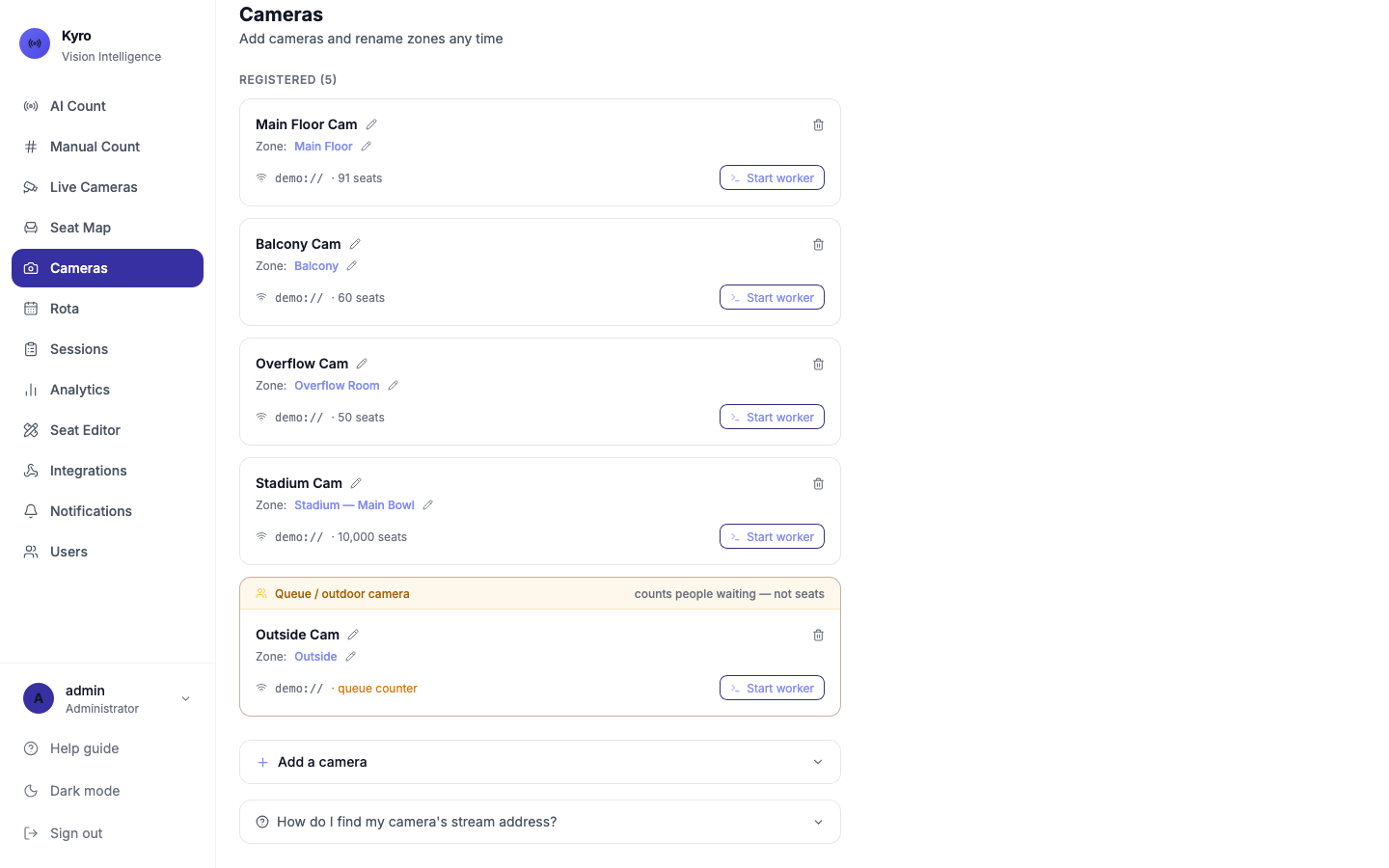
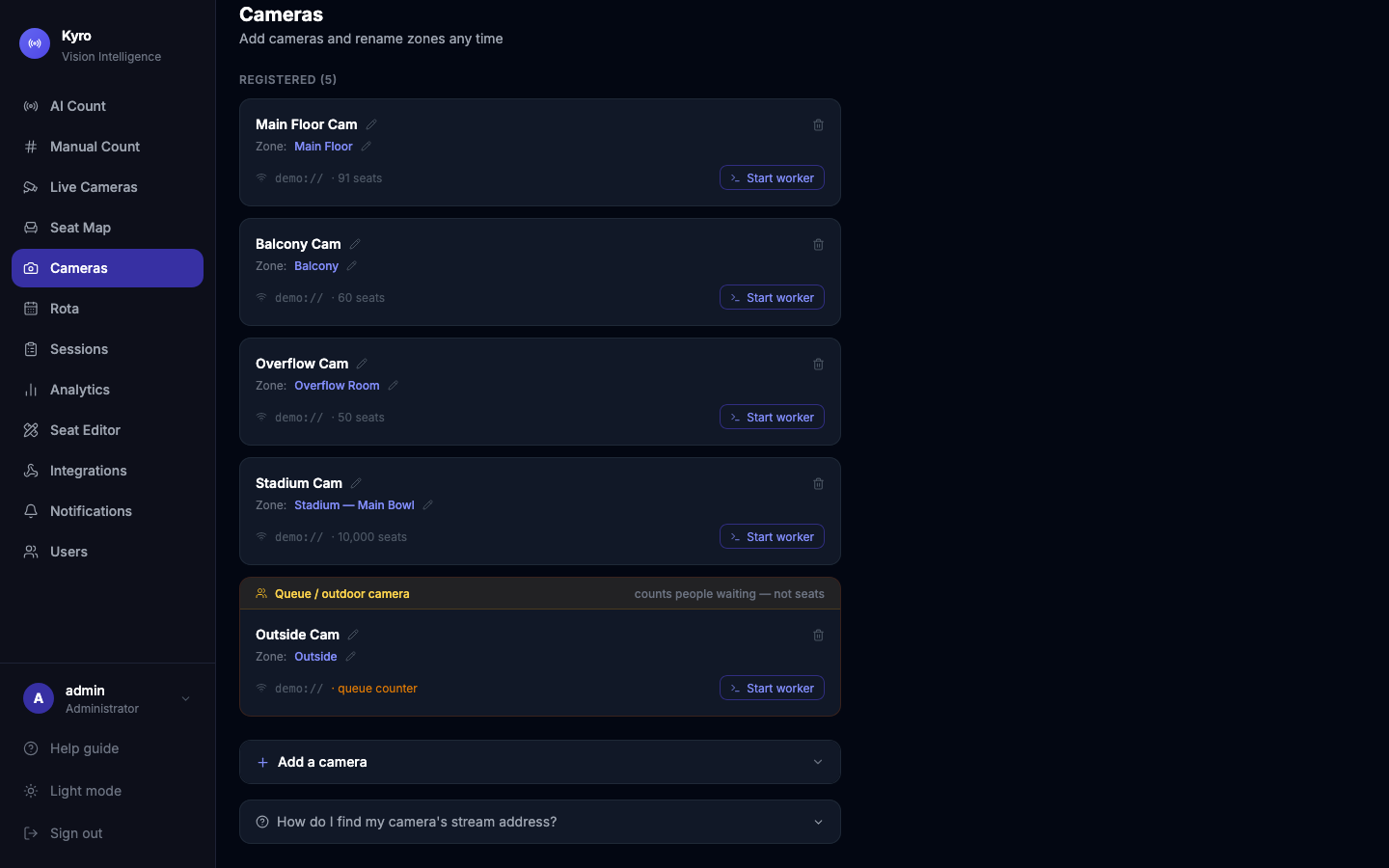
Add a camera
- Open Add a camera.
- Under What type of camera?, choose IP / Network Camera, USB Webcam or Other. Kyro fills in an example stream address for that type.
- Fill in:
- Camera name, for example Main Auditorium
- Zone / area name: the room it covers, for example Main Floor or Balcony
- Stream address: where Kyro reads the picture from (see below)
- Seat capacity (optional): the number of seats in the room
- Tap Add camera.
If the name sounds like it's outside (Entrance, Foyer, Car park, Queue…), Kyro asks "Is this an outdoor or queue camera?" Answer Yes, it's an outdoor/queue camera for a camera that counts people waiting, or No, it has seats.
Seat capacity sets up the seat map
When you give an indoor camera a seat capacity, Kyro creates a starter seat layout of that size, so the Seat Map works straight away. You can draw the real layout later in the Seat Editor.
Finding the stream address
Open How do I find my camera's stream address? on the page for help.
- IP / network camera: open the camera's own app → Settings → Network, and copy the RTSP address.
- USB webcam: enter 0 for the first webcam plugged into the Kyro computer, 1 for a second one.
Edit or delete a camera
- Edit: tap a pencil icon to change the name, zone, stream address, type (Indoor (has seats) or Outdoor / queue (no seats)) or seat capacity, then Save.
- Delete: tap the bin, then Yes, delete it. This can't be undone.
Start the camera
Adding a camera tells Kyro about it. The camera starts counting once the Kyro software is running for it on the church's Kyro computer. Tap Start worker on a camera to see the command, and give it to whoever looks after that computer.
Outdoor / queue cameras
An outdoor camera counts people waiting, not seats. Its count appears as OUTSIDE QUEUE on Live Cameras, and it's left out of the seat totals.