
Appearance
Seat Editor
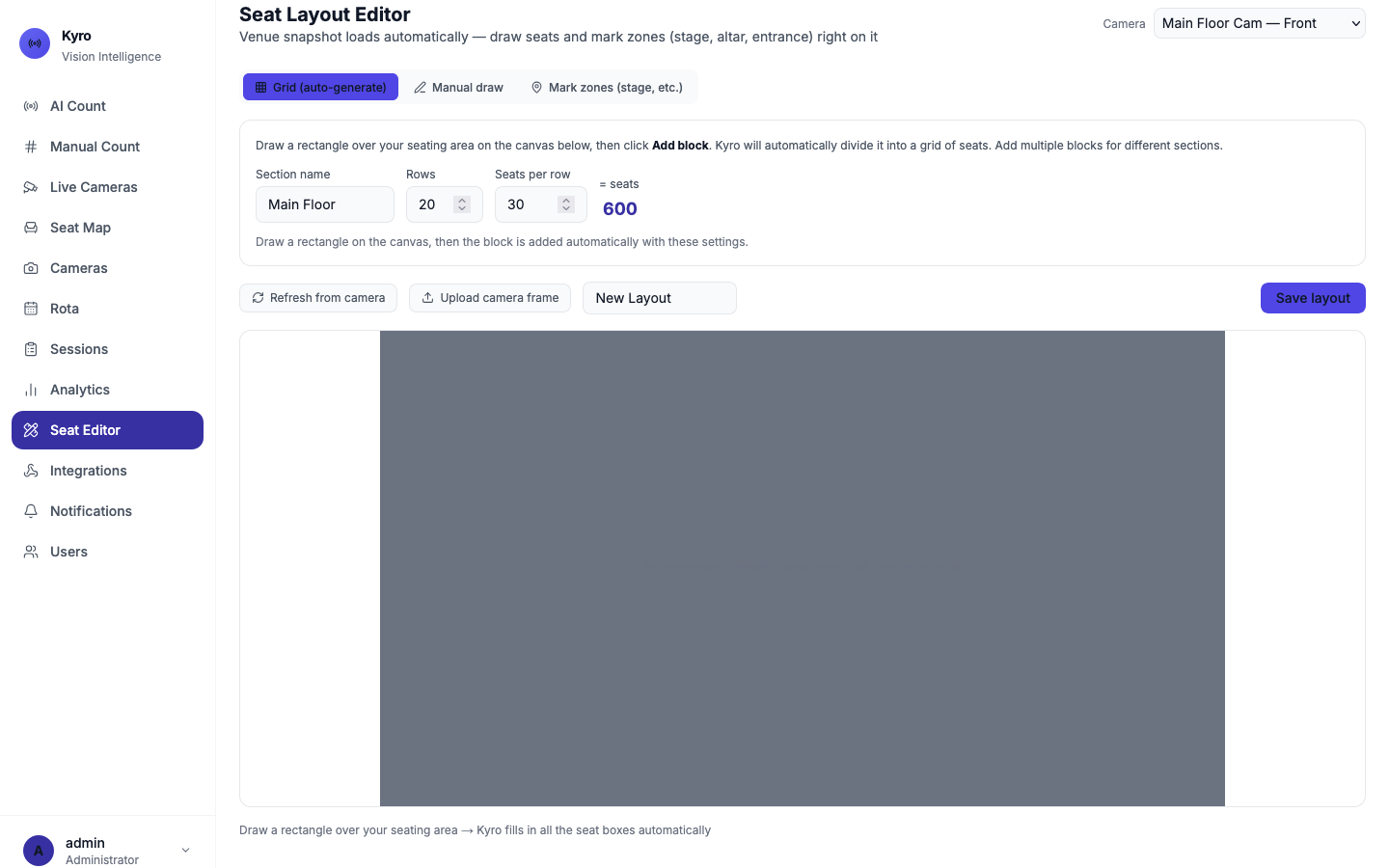
The Seat Editor is where an administrator draws the seats onto a camera's picture and marks special areas, such as the stage, altar or choir, so the AI knows what it's looking at.
Needs the camera system
The Seat Editor works on a real camera picture, and saving layouts needs the Kyro server. In Demo mode, use Upload camera frame to try it with a photo.
Before you start
- Choose the Camera at the top right.
- Get a background picture: tap Refresh from camera, or Upload camera frame to use a screenshot from the camera.
Draw seats quickly (Grid)
Best for rows of seats in blocks.
- Tap Grid (auto-generate).
- Enter the Section name, the number of Rows and Seats per row.
- Drag a rectangle over that block of seats on the picture. It's added when you let go.
- Repeat for each block.
- Give the layout a name, then tap Save layout.
Draw individual seats (Manual)
Best for odd layouts. Tap Manual draw and drag a small box over each seat. Seats are numbered in the order you draw them (A-1, A-2…). To remove one, tap it, then Delete selected. Tap Save layout when you're done.
Mark the stage, altar or choir (zones)
- Tap Mark zones (stage, etc.).
- Choose what the zone is for in Zone is for…: Stage, Altar, Choir, Entrance / Exit, Toilet / break area or Custom…
- Drag a rectangle over the area. Zones save as soon as you draw them.
| Zone type | What Kyro does |
|---|---|
| Stage, Altar, Choir | Holds seats: when a regular goes up front, their seat is kept for them (purple on the Seat Map) rather than shown as free |
| Entrance / Exit, Toilet / break area | Ignore: activity there isn't counted |
| Custom… | You choose: hold seats, or ignore |
Remove a zone with the bin icon in Zones on this camera.
Put a layout into use
Saving a layout doesn't switch it on. Under Saved layouts, tap Activate on the layout you want. You'll see Activated and the number of seats loaded.
TIP
Use a mouse or trackpad for drawing. Dragging with a finger on a tablet isn't supported.